

Who this is for
This guide is written for Owner, Admin, Manager, Coordinator and Finance.
Before you begin
- The catalogue is available to every organisation with an active BondiByte subscription. If a message says Your plan does not include this feature., your organisation's subscription is not active. Ask an Owner or Admin to check Billing & subscription. There is no switch to turn on.
- You are signed in to BondiByte on a computer.
- You know what a Service Agreement is. See the Service Agreements overview.
What the shared NDIS catalogue is
BondiByte keeps one NDIS catalogue for every organisation. It lists the NDIS support items with each item's code, name, support category and prices. You do not upload, schedule or maintain a catalogue of your own: BondiByte keeps it up to date for you.
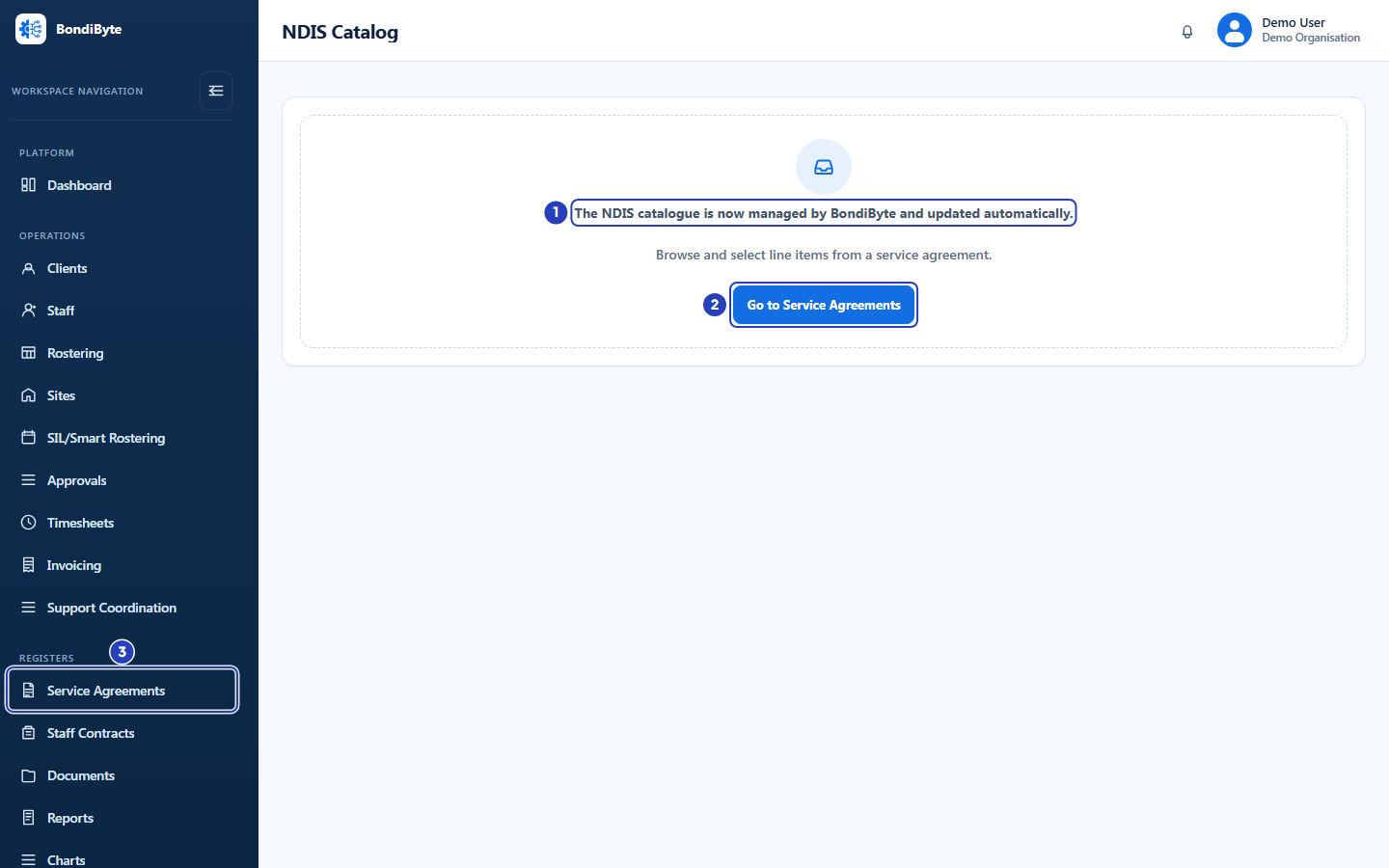
The NDIS Catalog menu entry no longer appears in the left menu. If you open the NDIS Catalog page directly, for example from a saved link, it shows a notice instead: The NDIS catalogue is now managed by BondiByte and updated automatically. It points you to Browse and select line items from a service agreement. and offers a Go to Service Agreements button.
Where you use the catalogue
You choose catalogue items inside a Service Agreement. There are two ways in, both on the agreement page under Agreement Line Items.
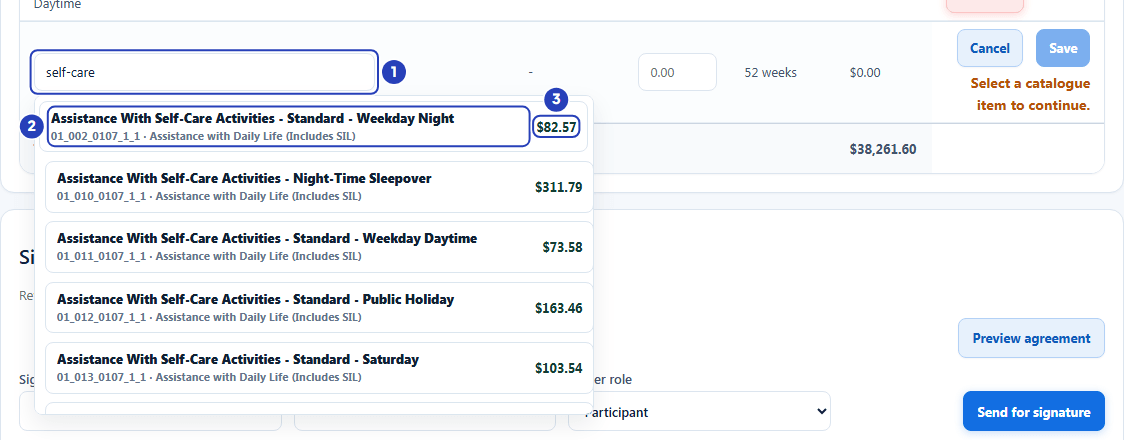
With Add line item, a new row opens with a search box that says Search NDIS catalogue. Type an item code or part of its name and a list appears. While it searches the list says Searching catalogue..., and when nothing matches it says No catalogue rows found. Each result shows the item's name, its code and support category, and its catalogue price on the right. Choose a result to put it on the new line.
With Import line items, BondiByte matches the item codes or names in a CSV file, or in a screenshot of a table, against the same catalogue, and you review every match before anything is saved.
Prices and pricing zones
Each item has a catalogue price. The search list shows the item's standard National price. An item that has no set price shows Quote required when its price has to be agreed with the client, or a dash when it does not.
When you choose an item, BondiByte looks up the price for the agreement's pricing zone, National, Remote or Very Remote, and shows it under the rate box on a line that starts Reference:. If the catalogue has no price for that zone, the line says Catalogue rate unavailable for and the zone name, and you type the agreed rate yourself.
The catalogue price is a reference. The agreed rate in the Hourly rate column is yours to set, and a note appears when it differs from the reference. Your organisation is responsible for checking agreed rates against the client's plan and the current NDIS pricing arrangements.
When a new catalogue takes effect
BondiByte publishes each new NDIS catalogue with an effective date, the date from which it is used. Until that date the previous catalogue stays in use. From that date the search list and the import both use the new catalogue automatically.
Your organisation's administrators receive an email when a new catalogue is published. Its title is New NDIS catalogue effective from and the date, or Updated NDIS catalogue now available when the new catalogue is already in effect. It says that existing agreements and agreed rates are unchanged and that no action is required.
Lines you have already saved do not change. Each saved line keeps the item name, item code, agreed rate and pricing zone it had when you saved it, and shows the catalogue reference price next to the zone name when the two rates differ. To bring a saved line onto the new catalogue's price, remove it and add it again. Agreement dates are separate from catalogue dates: a new catalogue never changes an agreement's start date or end date.
What you do not need to do
BondiByte maintains the catalogue for every organisation, so there is nothing for you to download, upload or schedule.
You do not copy item names, codes or prices into an agreement by hand. Choose the item from the catalogue so that the code and name on the line match the catalogue exactly.
If something looks different
I cannot find NDIS Catalog in the left menu. This is expected. Open Service Agreements under Registers, open an agreement and choose Add line item to search the catalogue.
The search list says No catalogue rows found. Nothing in the catalogue matches what you typed. Search by the support item code, or type a shorter part of the name.
A message says You do not have permission to do that when I search. Your role does not include Can view NDIS catalog, which the search needs as well as Can manage agreement line items. Ask an Owner or Admin to check your role.
The price in the search list differs from the Reference line. The list shows the standard National price. The Reference: line shows the price for the agreement's own pricing zone. Check the zone in the agreement profile.
A saved line still shows the old price after a new catalogue took effect. Saved lines keep the price they were saved with. To use the new price, remove the line and add it again.
Important notes
Important: BondiByte supplies the catalogue as a reference to help you prepare agreements. Check every agreed rate against the client's plan and the current NDIS pricing arrangements before you rely on it.
Note: There is no separate screen for browsing the whole catalogue. You see catalogue items when you search from an agreement.
Good practice
- Search by the support item code when you have it. A code gives the shortest list, and each result shows the item's name, code and support category so you can confirm you have the right one.
- Read the Reference: line every time you choose an item. It shows the price for this agreement's pricing zone, which can differ from the price in the search list.
- After you read an email about a new catalogue, check the agreements that start after its effective date. New lines you add from then on use the new catalogue, and lines you saved earlier keep their old price.
- Keep the pricing zone of each agreement right before you add lines. The zone decides which catalogue price is suggested, and a saved line does not change when you change the zone later.