

Who this is for
This guide is written for Owner, Admin, Manager, Coordinator and Finance.
Before you begin
- If Service Agreements is missing under Registers in the left menu, your role does not include Can view service agreements. Ask an Owner or Admin to check your role. If the page says Your plan does not include this feature., your organisation's subscription is not active. An Owner or Admin checks Billing & subscription. There is no switch to turn on.
- Sending an agreement for E-signature needs E-signature to be switched on for your organisation. If the Signatures section on the agreement page says E-signature is not switched on yet., contact BondiByte support. Uploading a signed copy does not depend on it.
- You are signed in to BondiByte on a computer.
- You know what a Service Agreement is. See the Service Agreements overview.
How an agreement becomes signed
An agreement counts as signed in either of two ways. Both make it read-only.
E-signature. You send the agreement from the Signatures section at the bottom of the agreement page. When a signer completes signing, the Status of that request changes to Signed and the Signed column shows the date. See Send an agreement for E-signature.
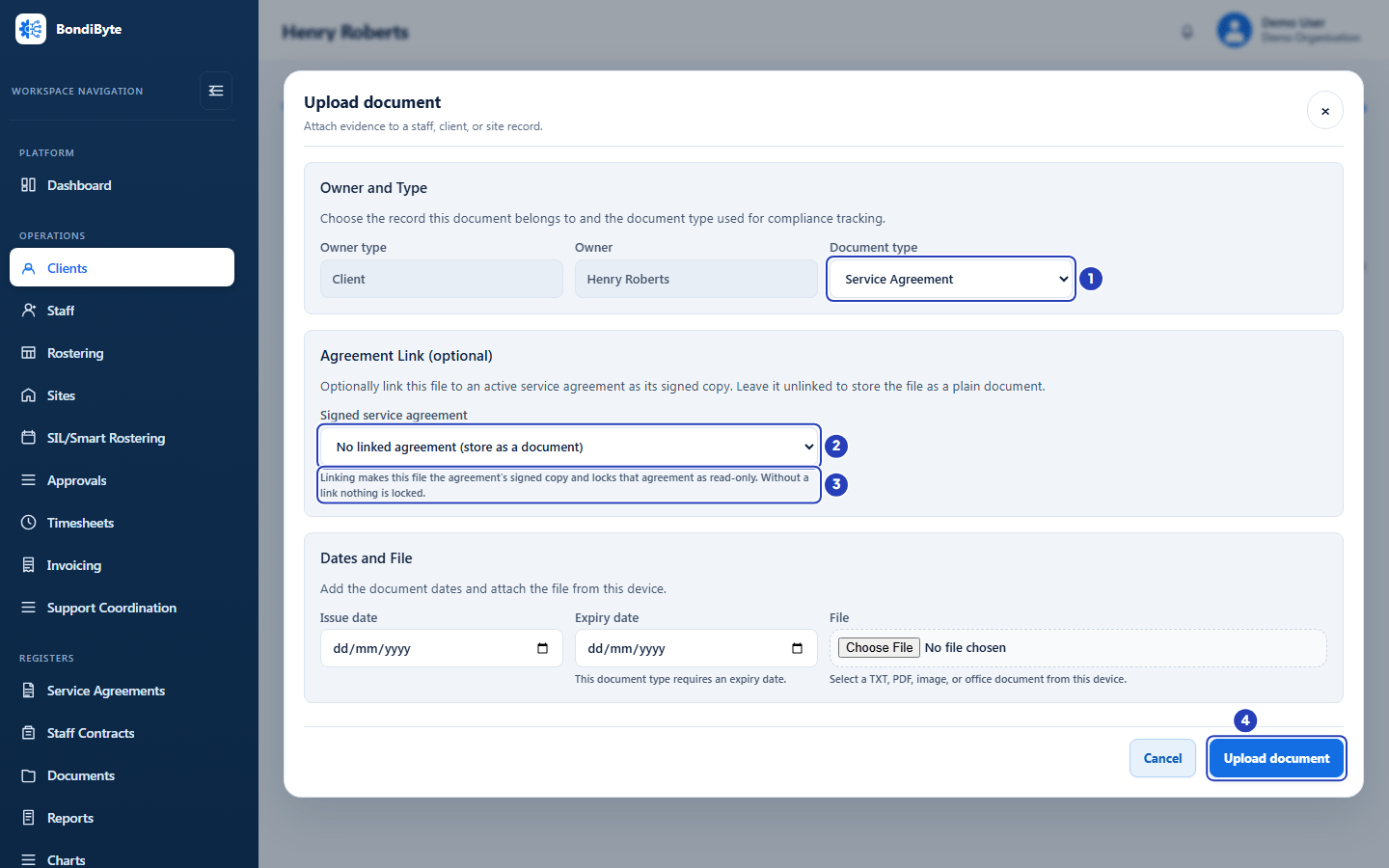
A signed copy you upload. If the agreement was signed on paper or somewhere else, open the client's record and choose the Documentation tab. Choose Add document and set Document type to Service Agreement. Under Agreement Link (optional), choose the agreement in Signed service agreement. Under Dates and File, type an Expiry date (this document type requires one; Issue date is optional) and choose the file with Choose File. Then choose Upload document. The window explains: Linking makes this file the agreement's signed copy and locks that agreement as read-only. Without a link nothing is locked. If you leave No linked agreement (store as a document), the file is stored as an ordinary document and the agreement stays editable. A signed copy can only be linked to an Active agreement.
In the picture, the markers show the document type (1), the Signed service agreement list (2), the explanation of what linking does (3) and Upload document (4).
What becomes read-only
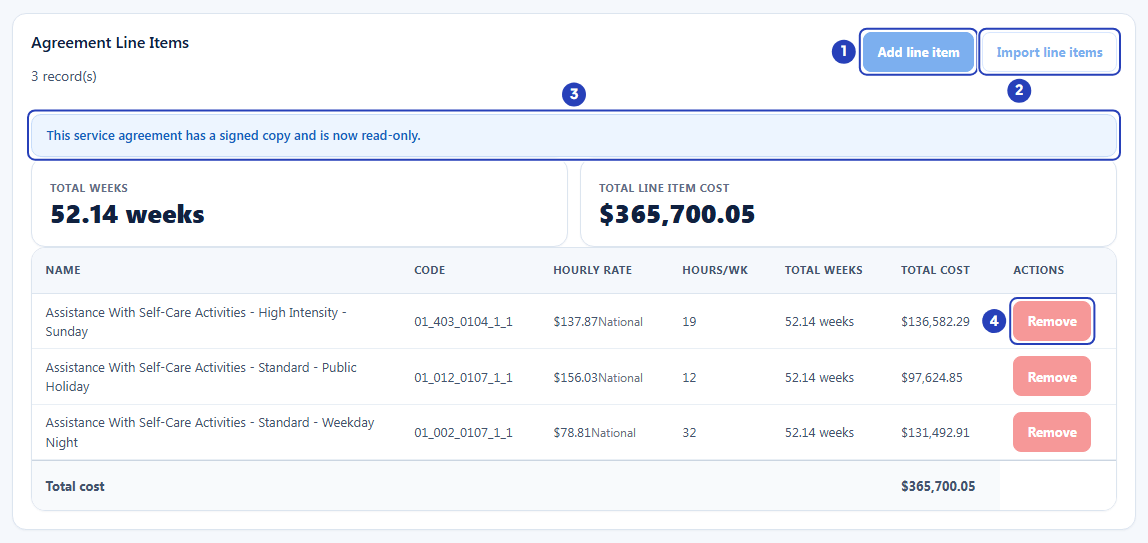
Once the agreement is signed, nobody can change its profile or its line items. The agreement profile edit icon, Add line item, Import line items and the Remove button on every line stop working. This applies to every role, including Owners and Admins, and there is no button that unlocks a signed agreement.
When the agreement has an uploaded signed copy, the page says This service agreement has a signed copy and is now read-only. and the buttons are greyed out. Pointing at Add line item or Import line items shows Signed agreements are read-only. Remove is greyed out too, but it shows no hint. In the picture the notice (3) sits above the totals, with Add line item (1), Import line items (2) and Remove (4) greyed out.
When the agreement was signed through E-signature, the page does not show that notice and the buttons look the same as before. A change is refused when you try to save it, and a message says This service agreement has been signed and is read-only. Treat any agreement with a Signed request as read-only.
What stays available
You can still open the agreement, read it, choose Download PDF and, with Can edit service agreements, choose Preview agreement. The Signatures table keeps showing each request, and a Signed row keeps its Download button.
Signing does not change the agreement's Status. A Draft agreement stays a Draft until it is activated, either with Activate on the client's Service Agreements tab or automatically when its start date arrives. An Active agreement stays Active until it expires or a newer agreement replaces it.
BondiByte bills from the client's Active agreement only. A signed agreement that is still a Draft is not used for billing until it is active. Shifts and invoices keep using the agreement's line items exactly as they were signed.
Where to find the signed copy
For E-signature, open the agreement and find the Signed row in the Signatures table. Choose Download to get the signed PDF. It holds the agreement as it was sent and a final page headed Electronic signature.
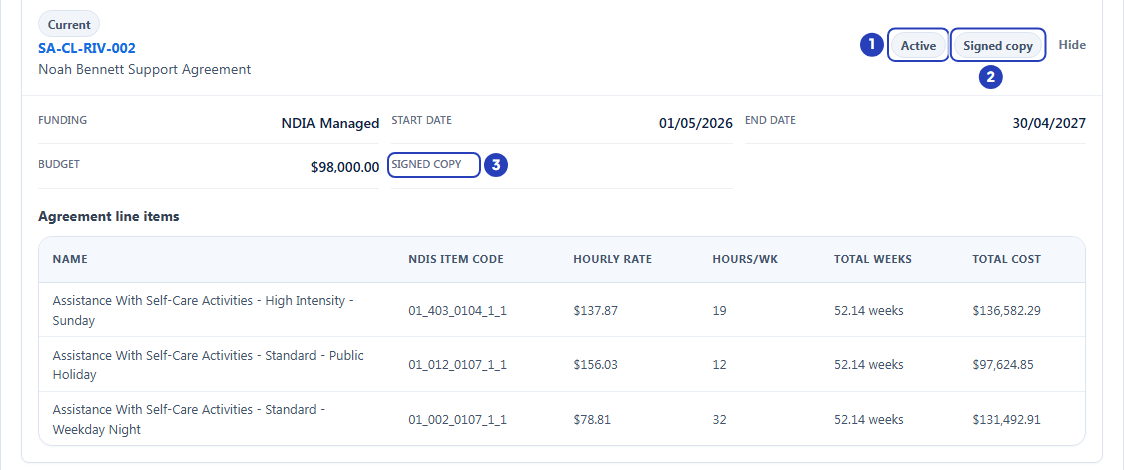
For an uploaded copy, the file is in the client's Documentation tab. On the client's Service Agreements tab the agreement's card shows a Signed copy pill next to its Active pill, and its Signed copy field shows the file name. The client's History tab records the upload as Document uploaded with the file name and the agreement number.
A file that is the signed copy of an agreement cannot be deleted. A message says This document is linked to another record and cannot be deleted. In the picture, the Active pill (1), the Signed copy pill (2) and the Signed copy field (3) show that this agreement has a signed copy.
Changing a signed agreement
To change anything on a signed agreement, create a new agreement for the client. On the client's Service Agreements tab, choose Add Service Agreement. Choosing Use last agreement setup copies the last agreement's title, dates, total budget, funding management, notes, pricing zone and line items into the new one, and you then change the Start date and End date and whatever else has changed.
Send the new agreement for signature, or upload its signed copy, in the same way.
When the new agreement becomes the client's Active agreement, the old one is marked Expired and leaves the default Agreement Records list. A window titled Activate this service agreement? warns that upcoming shifts and shift patterns that use line items from the old agreement keep pointing at it, so review their line items after the change.
If a change is refused
A message says This service agreement has been signed and is read-only. The agreement has a signed copy or a completed E-signature. Create a new agreement for the changes.
I uploaded the signed file but the agreement is not read-only. The file was stored with No linked agreement (store as a document). Upload it again and choose the agreement under Signed service agreement.
The agreement is not in the Signed service agreement list, or a message says This document belongs to an inactive service agreement. Only an Active agreement that has no signed copy yet can have one, and the list needs Can view service agreements. Activate the agreement first, then upload the file.
A message says This service agreement has already been signed. The agreement already has a signed copy. To record a different version, create a new agreement.
Add line item, Import line items or Remove is greyed out. The agreement has a signed copy. Pointing at Add line item or Import line items shows Signed agreements are read-only. Remove shows no hint.
The Upload document window will not submit. A Service Agreement document needs an Expiry date (the line under it says This document type requires an expiry date.) and a file chosen with Choose File. Fill in both, then choose Upload document again.
I cannot see Add document, or the Documentation tab is missing. Your role needs Can view documents to see the tab and Can upload documents to add a file, and Add document is not offered while the client is inactive. Ask an Owner or Admin to check your role, or reactivate the client first.
Important notes
Important: A signed agreement cannot be edited by anyone. Check the dates, the pricing zone and every line item before you send it for signature or upload its signed copy, because the only way to change them afterwards is a new agreement.
Note: BondiByte records the signature and the agreement that was signed. Your organisation is responsible for making sure the agreement is signed by the right people and meets the current NDIS requirements.
Good practice
- Check everything before the agreement is signed. After signing, the dates, the pricing zone and the line items cannot be changed by anyone, so a mistake means a new agreement.
- Choose your signing route first. Use E-signature when the signer can sign online, and upload a signed copy when the agreement was signed on paper.
- When you upload a signed copy, choose the agreement under Signed service agreement. Without the link the file is stored but the agreement stays editable.
- Activate the agreement once it is signed and ready. Signing does not make an agreement Active, and billing uses only the Active agreement.
- Create the renewal before the old agreement ends. Use Use last agreement setup, change the dates, send it for signature, then activate it so billing carries on without a gap.
- Download the signed PDF as soon as it is signed and keep it with the client's records, so you always have your own copy.