

Who this is for
This guide is written for Owner, Admin, Manager, Coordinator and Finance.
Before you begin
- If Service Agreements is missing under Registers in the left menu, your role does not include Can view service agreements. Ask an Owner or Admin to check your role. If the page says Your plan does not include this feature., your organisation's subscription is not active. An Owner or Admin checks Billing & subscription. There is no switch to turn on.
- To use Preview agreement, the Signatures section at the bottom of the agreement page must show it. If that section says E-signature is not switched on yet., E-signature is not available for your organisation yet and the preview is not offered. Contact BondiByte support. Download PDF still works.
- You are signed in to BondiByte on a computer.
- The agreement already exists. See Create a Service Agreement. The preview and the PDF show what is saved, so save any changes to the profile and the line items first.
- Your organisation's agreement wording comes from the agreement template published in the Service Agreement Builder (the gear on the Agreement Records page, which needs Can configure the service agreement template). If no template is published, BondiByte uses its standard layout.
Steps
The screenshots show a demonstration organisation with made-up names. Your own screens show your organisation's details. Select a screenshot to open it full size.
-
Go to Service Agreements > the agreement
1 In the left menu, under Registers, choose Service Agreements. The Agreement Records list opens. Choose the agreement number to open the agreement. See Complete the agreement profile for other ways to find it.
2 Check the Agreement Profile at the top. The preview and the PDF draw on the client's name, the dates, the Pricing Zone and the line items, so read the Status, Funding Management, Pricing Zone, Start Date, End Date and Total Line Item Cost first.
3 Check Agreement Line Items below it. Each line becomes a row in the agreement's table of supports, with its hourly rate, hours per week and cost.
Note: The preview and the PDF show the saved agreement only. A new line row that is still open, or a profile edit you have not saved, is not included.
Note: The green Active badge beside Download PDF only shows that the agreement record is switched on. It is not the agreement's Status. The Status in the Agreement Profile, for example Draft, is what decides whether BondiByte bills from the agreement.
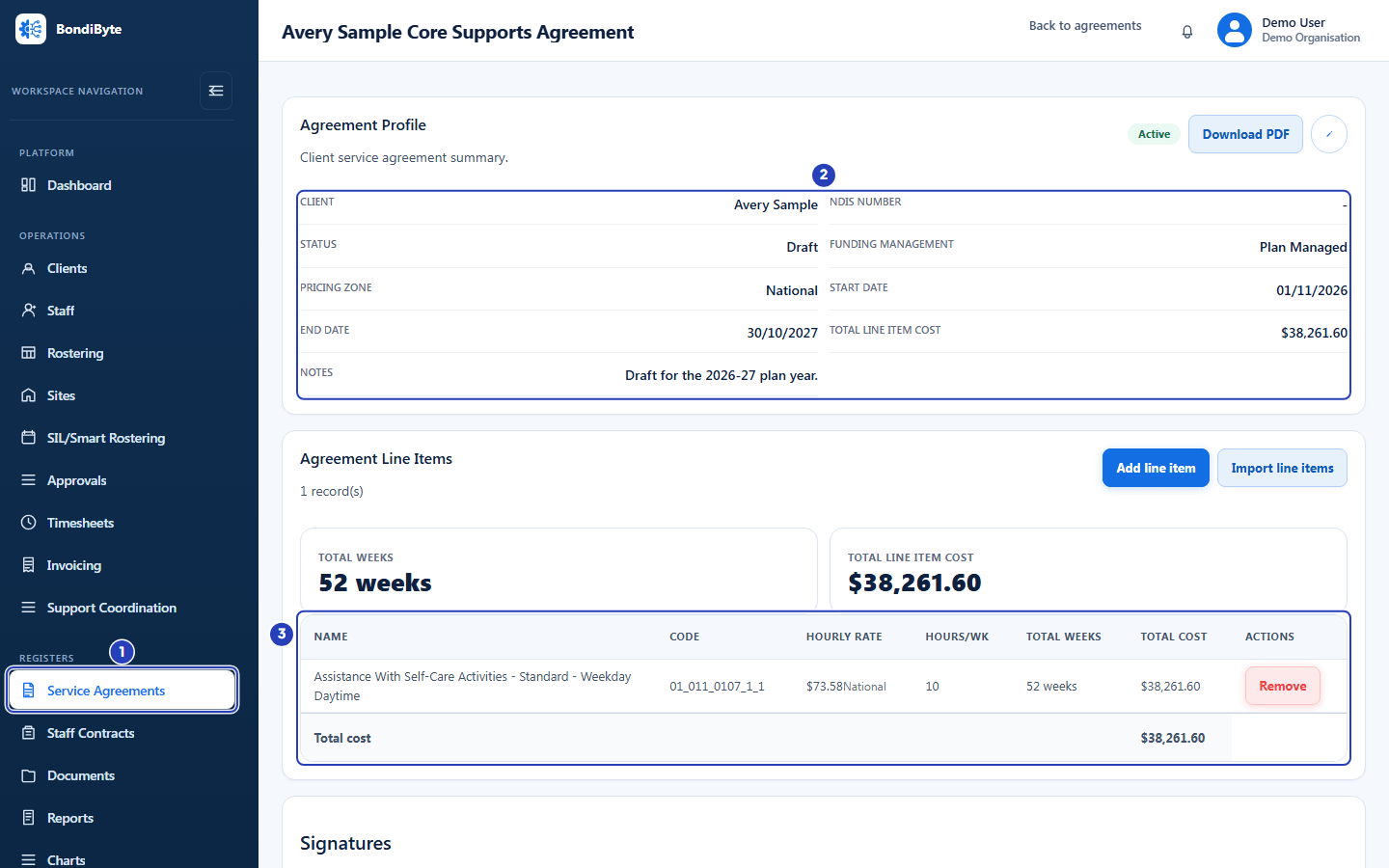
Open the agreement from Service Agreements (1), check the Agreement Profile (2) and the Agreement Line Items (3). -
Scroll to Signatures and choose Preview agreement
1 Scroll to the bottom of the page to the Signatures section. It starts with the line Review the full rendered agreement, then send it to the signer for e-signature.
2 Choose Preview agreement. While BondiByte prepares the preview the button says Preparing preview... and a large window opens when it is ready.
Fields in step 2 Field What it means Preview agreement Opens the agreement as the signer would read it, without sending anything. It is shown only to roles with Can edit service agreements, and only where E-signature is switched on. Signer name, Signer email, Signer role and Send for signature The form under the button sends the agreement out for signing. Previewing does not send anything and does not fill in this form. Note: Previewing never sends email and never creates a signing request. It is safe to open as often as you like.
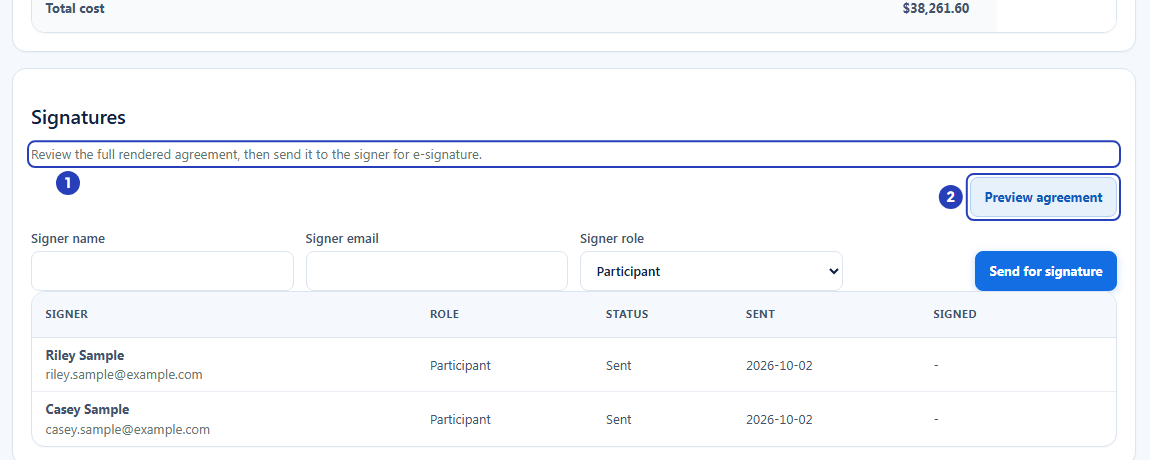
The line that introduces the Signatures section (1) and the Preview agreement button (2). -
Read the preview
1 At the top of the window, the title is Agreement preview, with the line What the signer will review. The signed PDF uses your branded layout.
2 Read the agreement below it. It starts with your organisation's name (and its logo, if you have added one), followed by your own agreement wording with this agreement's details filled in. If your organisation has no published agreement template, you see BondiByte's standard layout instead. Scroll down to read it all.
3 When you have finished, choose Close at the top right of the window, or press the Esc key on your keyboard.
Fields in step 3 Field What it means The agreement text Your agreement wording with this agreement's details filled in: the client, the dates, the pricing zone and the line items. The wording comes from the template you published in the Service Agreement Builder, or from BondiByte's standard layout when no template is published. Changes you have only saved as a draft in the Builder do not appear until you publish them. Close Closes the window. Nothing is saved or sent. Note: On most screens the preview window is wider than the space beside the left menu, so its left edge sits behind the menu and the first letters of some lines, or part of the title, can be hidden. The agreement is all still there. To see more, choose the menu icon at the top of the left menu (it is named Collapse menu), widen your browser window, or zoom the page out.
-
Choose Download PDF
1 Scroll back to the top of the page. In the Agreement Profile heading row, choose Download PDF, next to the edit icon.
BondiByte builds the PDF from the saved agreement at that moment and your browser downloads it. While the file is being prepared the button changes to Downloading... and is greyed out. No confirmation message appears when it works, and an error message appears if the download fails. The file is named after the agreement number, followed by
.pdf, and goes to your browser's usual downloads place.Fields in step 4 Field What it means Download PDF Builds a fresh PDF each time you choose it. It says Downloading... and is greyed out while the file is prepared. It is shown to everyone who can open the agreement, including when the agreement is signed and read-only. 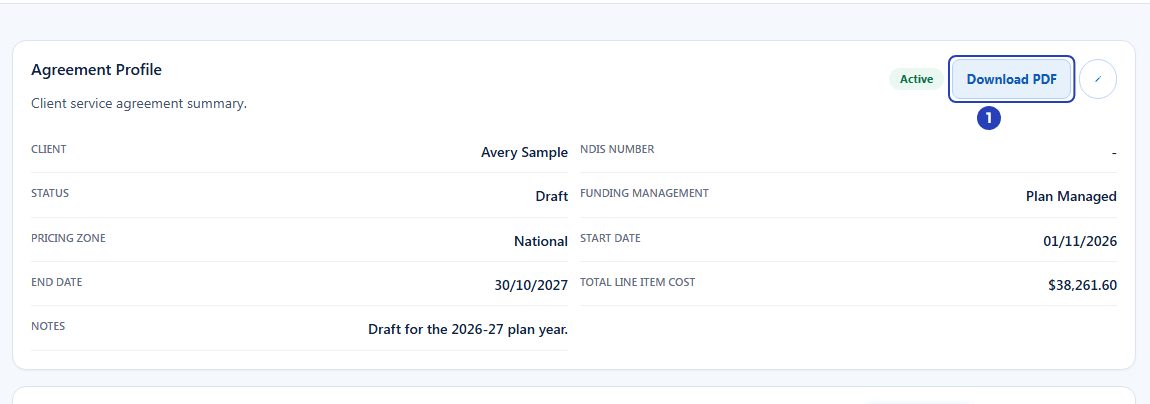
Choose Download PDF (1) in the Agreement Profile heading row. -
Open the downloaded file and check it
1 Open the file from your browser's downloads.
2 With a published template, the PDF uses your branded layout and holds your agreement wording with this client's details and the table of line items. Without one, it is BondiByte's standard document: the agreement number and client name, a summary of the Agreement title, Status, Funding management, Pricing zone, Start date, End date and Total line item cost, and a Line Items table with each item's code, hourly rate, quantity and budget.
3 Check the names, the dates, each line and the total against the agreement page. If something is wrong, correct the agreement and download the PDF again. If the wording is wrong, it comes from your agreement template, not from this agreement.
Important: The PDF is a snapshot of the moment you downloaded it. If you change the agreement afterwards, an earlier download does not change. Download it again after any change.
What happens next
Previewing and downloading change nothing on the agreement and send nothing to anyone. The PDF is yours to print, save or share.
To get the agreement signed electronically, use Send for signature in the same Signatures section. The signer reviews the agreement as it stands when you send it. See Send an agreement for E-signature.
When the agreement has been signed it becomes read-only. You can still preview it and download the PDF. See What happens after an agreement is signed.
Important notes
Important: A downloaded PDF is not a signed agreement. It becomes the client's signed copy only when it has been signed and attached, or when the signer completes E-signature.
Note: Your organisation is responsible for the wording of its agreement and for checking the agreed rates against the client's plan and the current NDIS pricing arrangements.
Good practice
- Check the agreement's dates, Pricing Zone and line items before you preview. The document is made from the saved agreement, so a wrong date in the profile appears in the document.
- Preview before you send for signature. The preview is what the signer will read, and BondiByte keeps the agreement as it was when you sent it.
- Download the PDF again after any change. A PDF you downloaded earlier is not updated when you edit the agreement.
- Fix wording problems in the Service Agreement Builder and publish the template, rather than editing a downloaded file. The preview and the PDF use only the published template.
- Give people who only need to read an agreement a role with Can view service agreements. They can download the PDF but not preview or send it.
Troubleshooting
I cannot see Preview agreement.
Why it happens: Your role does not include Can edit service agreements, or E-signature is not switched on for your organisation. In that case the Signatures section says E-signature is not switched on yet.
What to do: Ask an Owner or Admin to check your role. If the section says E-signature is not switched on, contact BondiByte support. You can still use Download PDF.
The button says Preparing preview... and nothing opens.
Why it happens: BondiByte is still building the document, or it could not build it and a message appeared at the top of the page.
What to do: Wait a moment. If a message appears, read it, check your connection and choose Preview agreement again.
Part of the preview window, such as the title, is hidden behind the left menu, or I cannot see Close.
Why it happens: On most screens the large window is wider than the space beside the left menu, so its left edge sits behind the menu and its right edge can run past the edge of the screen.
What to do: Choose the menu icon at the top of the left menu (it is named Collapse menu), widen your browser window or zoom the page out. You can also press the Esc key to close the window.
Nothing seems to happen when I choose Download PDF.
Why it happens: The button changes to Downloading... and is greyed out while BondiByte prepares the file, then your browser saves it. BondiByte shows no confirmation message when it works. If the download fails, an error message appears. Otherwise your browser's download bar or blocker may be asking you something.
What to do: Wait for the button to say Download PDF again, then check your browser's downloads, and allow downloads from BondiByte if your browser asks.
The preview or the PDF is missing a line I added, or shows an old date.
Why it happens: The document is made from the saved agreement. A new line row that is still open, or an unsaved profile edit, is not included.
What to do: Choose Save on the line row or Save changes on the profile, then preview or download again.
The wording in the document is not what I expected.
Why it happens: The wording comes from your organisation's published agreement template, or from BondiByte's standard layout if none is published.
What to do: Ask someone with Can configure the service agreement template to check the template in the Service Agreement Builder and publish the change.
A message says You do not have permission to do that.
Why it happens: Your role does not include Can view service agreements (needed for Download PDF) or Can edit service agreements (needed for Preview agreement).
What to do: Ask an Owner or Admin to check your role.
A message says We could not find that service agreement.
Why it happens: The agreement does not exist any more, or it belongs to a client at a site you cannot see because your access is limited to certain sites.
What to do: Ask an Owner or Admin to check your site access.