

Who this is for
This guide is written for Owner, Admin, Manager, Coordinator and Finance.
Before you begin
- You are signed in to BondiByte on a computer.
- You know what a Service Agreement is. See the Service Agreements overview.
The three pricing zones
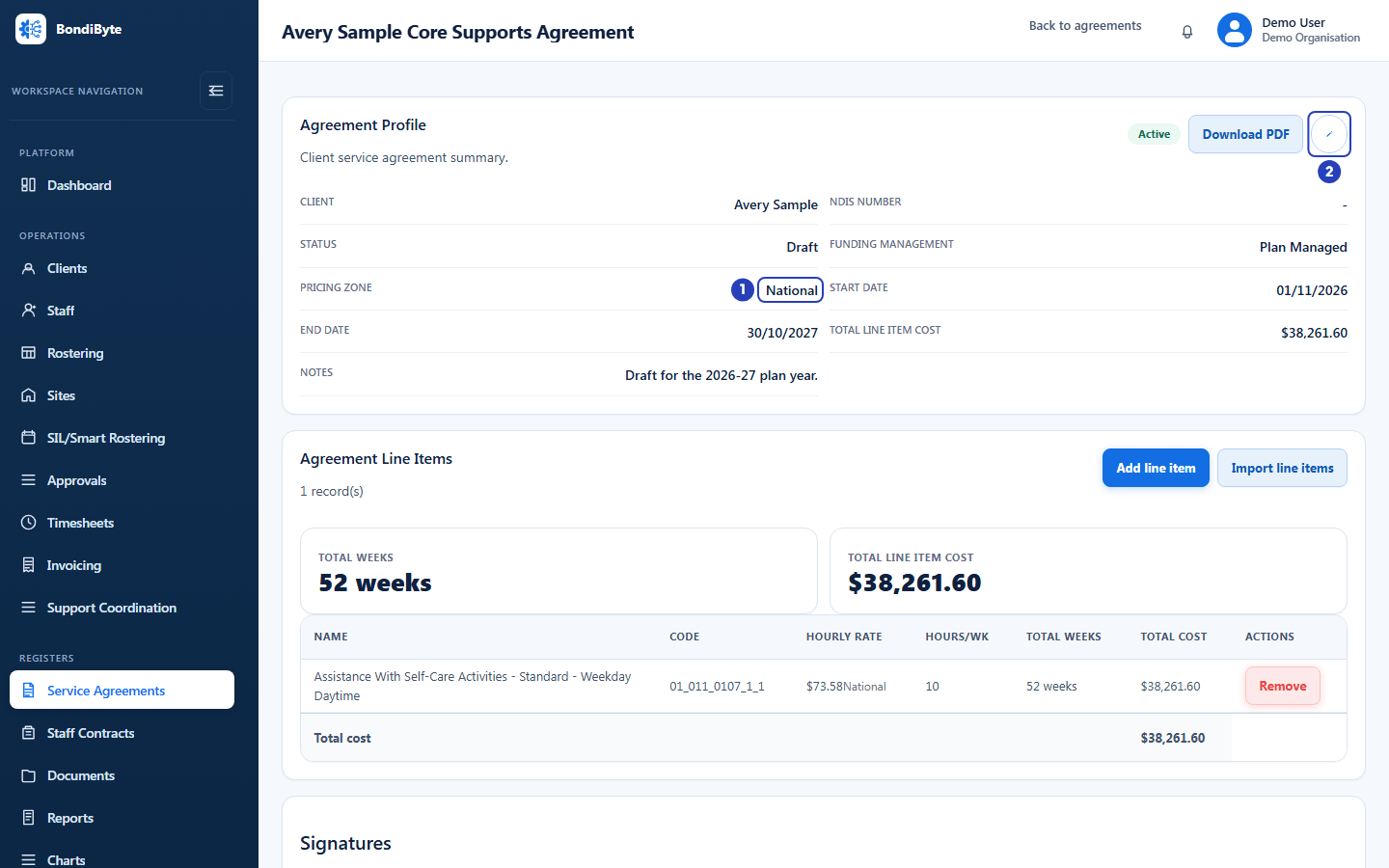
Every Service Agreement has a pricing zone: National, Remote or Very Remote. A new agreement starts as National.
The zone matches the prices in the NDIS catalogue. A support item has a standard price and, where the catalogue gives them, a Remote price and a Very Remote price for the same item.
The zone is a setting on the agreement. It is not worked out from the client's address, and BondiByte does not check that it suits the client. You choose it, using the current NDIS pricing arrangements.
What the zone changes
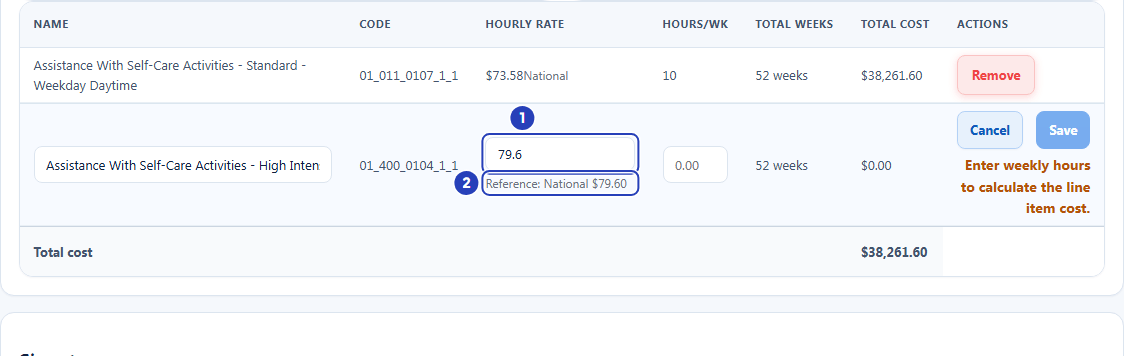
The zone decides which catalogue price is suggested when you add a line item. When you choose a catalogue item, BondiByte looks up the price for the agreement's zone and puts it in the rate box in the Hourly rate column as the starting figure. This is the agreed rate. The same price is shown under the rate box on a line that reads Reference: followed by the name of the zone and the price, for example Reference: National.
The agreed rate is yours to edit before you save the line. If your rate differs from the reference price, a note says so. If it is higher, the note asks you to confirm that the rate is appropriate for this agreement. BondiByte does not block a different rate.
BondiByte never swaps in another zone's price. If the catalogue has no price for the item in the agreement's zone, or the item needs a quote, the rate box starts empty and you type the agreed rate yourself before you save.
The price in the catalogue search list is the item's standard National price, whichever zone the agreement uses. The Reference line under the rate box is the price for the agreement's zone.
Where you set the zone
You can choose the zone in the Create service agreement window, which opens from Create agreement on the Service Agreements list, and in the agreement profile with the edit icon.
The Add Service Agreement window on a client's record has no pricing zone field. A new agreement made there starts as National, or keeps the zone of the agreement it copies when you choose Use last agreement setup. You can change the zone afterwards in the agreement profile.
What happens to existing lines when you switch zone
Changing the pricing zone affects new line items only. Lines you have already saved keep their zone and their agreed rate.
Each saved line shows the zone it was added under, below its hourly rate. When the agreed rate differs from the catalogue price, the line also shows the catalogue reference price next to the zone name.
To bring an existing line onto a different zone's price, remove the line and add it again.
What the zone does not do
The zone only affects the price suggested when a line is added. Your organisation is responsible for choosing the right zone and for checking agreed rates against the client's plan and the current NDIS pricing arrangements.
A signed agreement is read-only, so its zone and lines cannot be changed. To change them, create a new agreement.
Important notes
Important: Prices in BondiByte come from the NDIS catalogue your organisation uses. Check an agreed rate against the client's plan and the current NDIS pricing arrangements before you rely on it.
Good practice
- Set the zone before you add any line items. A saved line keeps the zone and the price it was added with, so lines added before a change keep their old zone.
- Write the reason for your zone choice in the agreement's Notes, so anyone who reviews the agreement later can see why it was chosen.
- If you are not sure which zone applies, check the NDIS pricing arrangements before you add line items. The zone can be changed later, but only new lines are affected.