

Who this is for
This guide is written for Owner, Admin, Manager and Coordinator.
Before you begin
- The participant is on the Support Coordination caseload and has a coordinator. See Support Coordination caseload and record.
- To bill time, the participant has an active Service Agreement with line items. See Add line items.
- To send a referral, you know the provider's email address. You can type it when you save the referral or when you send it.
Steps
The screenshots show a demonstration organisation with made-up names. Your own screens show your organisation's details. Select a screenshot to open it full size.
-
Go to Support Coordination > the participant > Activities
The Activities tab is the participant's register of case notes: every call, meeting, visit, email and piece of work you record. Billable ones also draw from the participant's budget.
1 In the left menu, choose Support Coordination, then choose the participant in the Caseload list. See Support Coordination caseload and record if the page is new to you.
2 Choose the Activities tab. The filter above the table chooses what it lists. All activities lists every activity. Billable lists only the activities marked billable. Unbilled lists only the activities that are not billable, such as case notes and time that is not charged to the budget. It does not mean billable activities that have not been claimed yet. To find those, look for Unclaimed in the Claimed column.
3 Send email emails someone from here and logs the email as an activity.
4 Log activity opens the form for a new activity. Log activity in the participant header and + Log activity on the Overview open the same form.
5 The table lists the activities, newest first. Choose a column heading to sort.
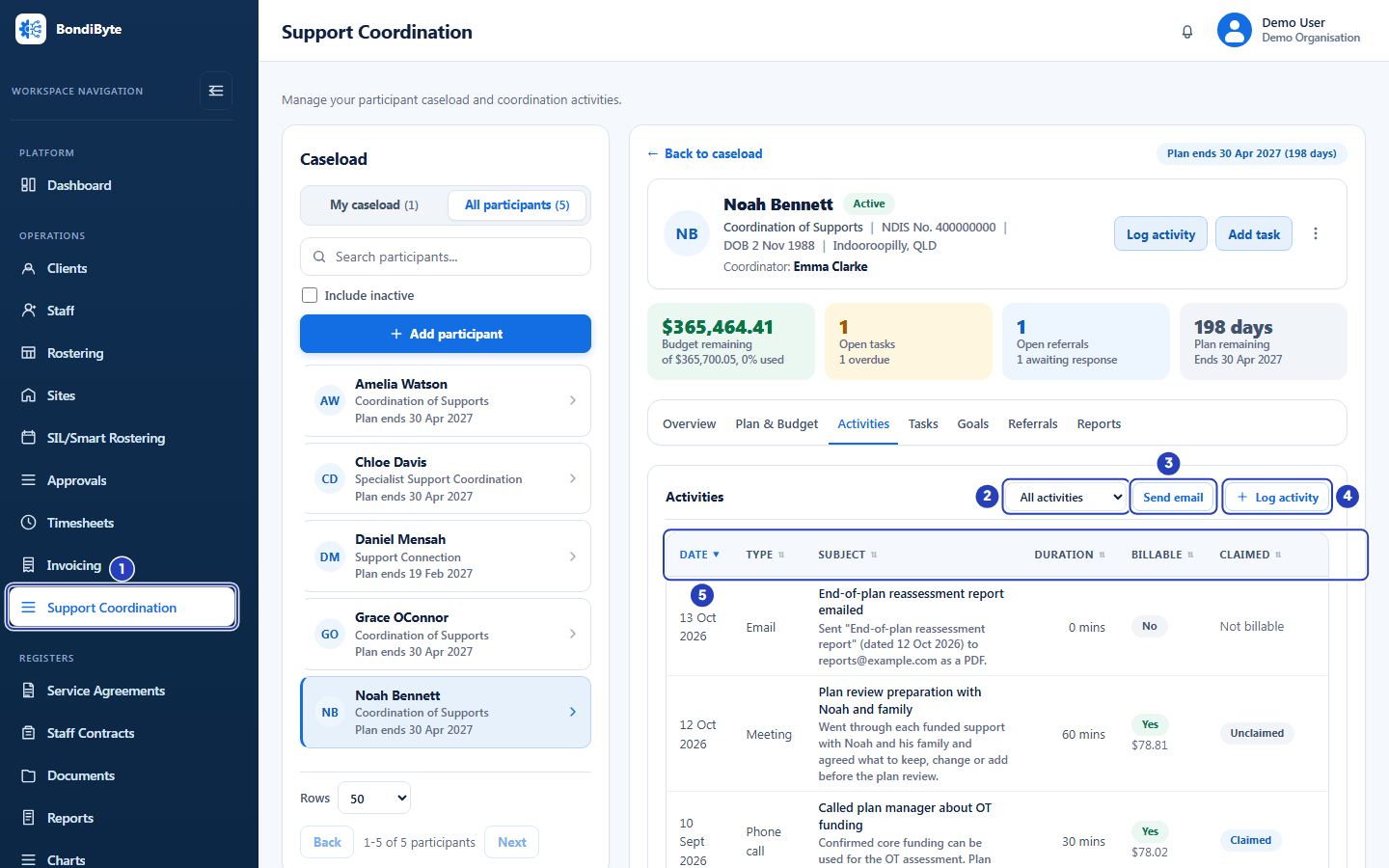
Choose Support Coordination (1), open the Activities tab, then use the filter (2), Send email (3) and Log activity (4). The table (5) lists the activities. -
Read the activities table
Each row is one activity. The columns are below. The table opens sorted by Date, newest first, and you can sort by Date, Type, Subject, Duration, Billable or Claimed by choosing its heading.
If no activity matches the filter, the table says No billable activities or No unbilled activities, then No activities match this filter. Show all activities brings the list back. With no activities at all it says No activities recorded yet and suggests logging a phone call, meeting, home visit or case note.
Fields in step 2 Field What it means Date The day the activity happened. Type Phone call, Email, Meeting, Home visit, Research, Report or Other. Subject The subject, with the start of the case note under it. Duration The minutes spent, such as 60 mins. Billable Yes with the dollar amount for a billable activity, or No. The Billable filter lists the Yes rows and the Unbilled filter lists the No rows. Claimed Unclaimed or Claimed for a billable activity, or Not billable. A claimed activity is locked. Three-dot menu If you can manage support coordination, Edit and Delete. For a claimed activity, Edit becomes View and Delete is greyed out, and hovering over Delete says Claimed activities cannot be deleted. If you can only view support coordination, the menu has View alone and no Delete. On a narrow window, scroll the table sideways to reach the menu. -
Log an activity
Choose Log activity. The Log activity drawer opens on the right.
1 Date starts as today. Change it if the activity was on another day. This is required.
2 In Activity type, choose Phone call, Email, Meeting, Home visit, Research, Report or Other. This is required.
3 In Duration (minutes), type whole minutes from 1 to 1440. This is required.
4 Travel (km) is optional. Type the kilometres travelled, zero or more.
5 Billable starts ticked. Untick it for time that is not charged.
6 In Bill against, choose the funded support the time is charged to. It lists each support with its hourly rate. It is required while Billable is ticked and greyed out when it is not.
7 In Subject, type a short subject, up to 200 characters. This is required.
8 In Case note, write what was discussed, decided or done. This is required.
9 Choose Log activity. A message confirms Activity logged. and the participant's tiles update.
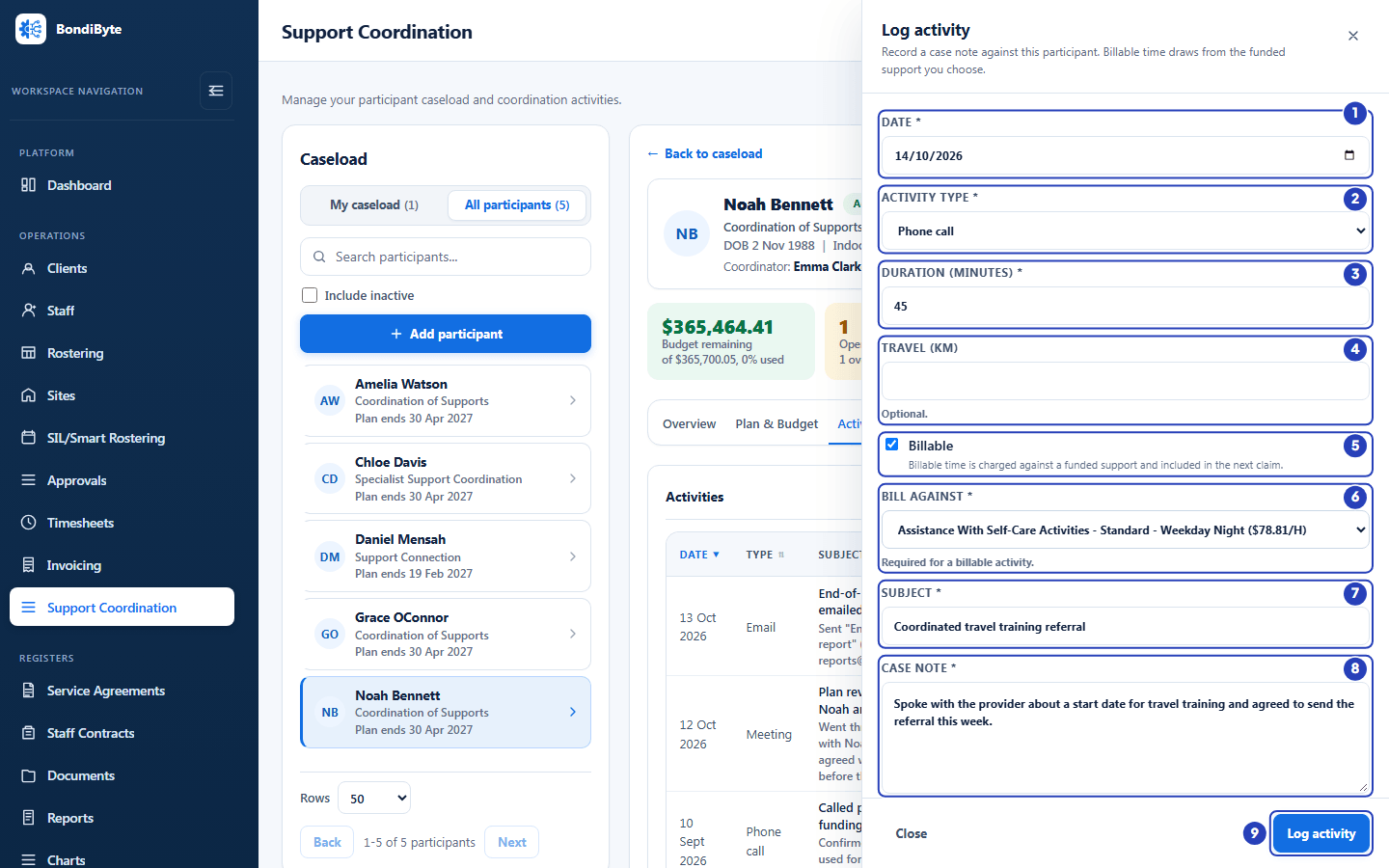
Check the date (1), choose the type (2), type the duration (3) and any travel (4), keep Billable ticked (5), choose what to bill against (6), then write the subject (7) and case note (8) and choose Log activity (9). -
Know how a billable activity changes the budget
BondiByte works out a billable activity's value as the minutes divided by 60, multiplied by the hourly rate of the support you chose in Bill against. At $100.00 an hour, a 30-minute activity uses $50.00. That amount is added to Used and taken from Remaining for that support, in the header tile and on the Plan & Budget tab. A not billable activity never touches the budget.
Bill against lists only supports on the participant's active Service Agreement. If there are none, it reads No funded supports on this plan and a billable activity cannot be saved. Untick Billable, or add line items to the agreement first.
To change an activity, open its three-dot menu and choose Edit. The drawer is titled Edit activity and its changes apply to the budget straight away. Delete asks you to confirm in a window titled Delete activity? Once an activity is claimed it is locked: it opens as Activity to read only and cannot be deleted.
Important: A billable activity reduces the participant's budget, so choose the funded support that matches the work.
-
Send an email from the Activities tab
Choose Send email to email a provider, planner, participant or family member without leaving the record. The Send email drawer says the email is sent from your organisation and logged as an activity.
To is required. Recipient name is optional. Subject and Message are required.
Billable starts unticked. Tick it to charge the time spent on the email. Then choose a funded support in Bill against and type the minutes in Time spent (minutes). Both are required for a billable email.
Choose Send email. A message confirms Email sent and logged as an activity. The email appears in the table as an Email activity with a subject that starts Email sent:. If the email cannot be sent, a message says so and no activity is logged.
-
Read the Referrals table
The Referrals tab keeps the register of the participant's referrals. Add referral in the corner of the Referrals card opens the form, and shows only when you can manage support coordination. The table opens sorted by Referral date, newest first. Choose the heading of Provider, Service, Referral date, Follow-up or Status to sort. Contact and the menu column do not sort.
With no referrals the tab says No referrals recorded yet. and Refer this participant to a provider and track the response here. If you can manage support coordination, an Add referral button sits under it.
Fields in step 6 Field What it means Provider The provider the participant was referred to. Service The service type, for example occupational therapy. Contact The contact person's name, then the provider's email address and phone number under it. It reads No contact details when none were recorded. Referral date The day the referral was made. Follow-up The day you chose to check for a reply. It is blank when none was set. Status A coloured label: Draft, Sent, Awaiting response, Accepted, Declined or Closed. Once the referral has been emailed, the words Sent and the date show under the label, such as Sent 14 Oct 2026. They read Sending... while the email is going out. Three-dot menu The actions for the row, described in the steps below. If you can only view support coordination, it has View, and View email once an email was sent for the referral. -
Add a referral
A referral records that you referred the participant to a provider, and what happened next. Choose the Referrals tab, then Add referral. The Add referral drawer opens.
1 In Provider, type the provider's name. This is required.
2 In Service type, type the service, for example occupational therapy. This is required.
3 In Provider email, type the address the referral will go to. It is optional, but it is needed to send the referral. Once a valid address is in the box, Save and send appears.
4 In Follow-up date, choose the day you want to check for a reply. It is optional and cannot be before the referral date.
5 Status starts as Draft. Leave it as Draft for a referral you have not sent.
6 Save and send saves the referral and emails it to the provider. Messages confirm Referral added. and Referral sent to the provider.
7 Save referral saves the referral without sending it. A message confirms Referral added. You can send it later from its menu.
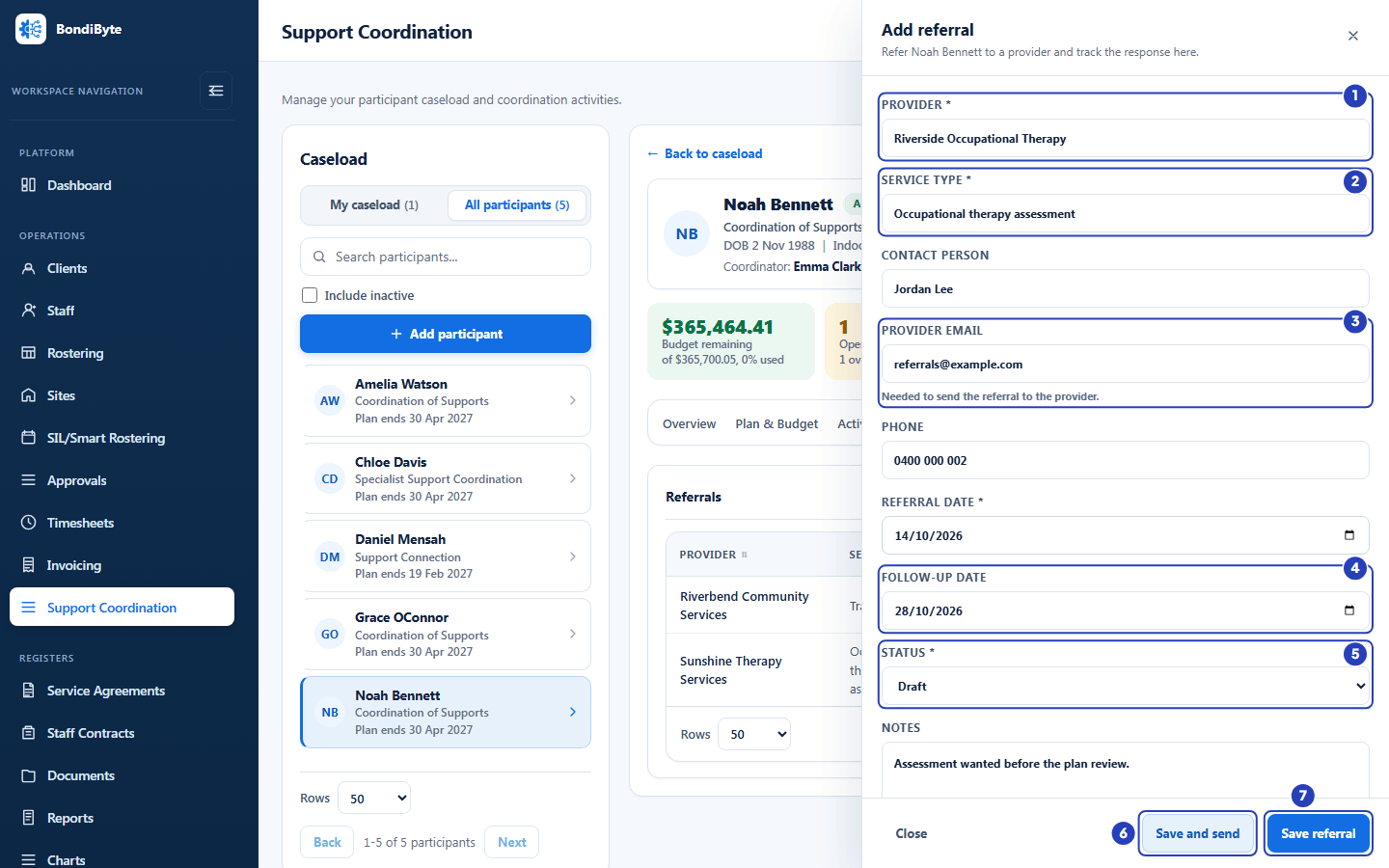
Type the provider (1), the service type (2) and the provider email (3), choose a follow-up date (4) and check the status (5), then choose Save and send (6) or Save referral (7). -
Know the other referral fields and statuses
Contact person and Phone are optional. Referral date is required and starts as today. Notes is optional and is included in the referral letter the provider receives.
Status can be Draft, Sent, Awaiting response, Accepted, Declined or Closed. Choose a status other than Draft only when the referral was handled outside BondiByte. In the table the colours are: Draft and Closed grey, Sent blue, Awaiting response amber, Accepted green and Declined red.
-
Send the referral to the provider
You can send a referral with Save and send when you add it, or later from its three-dot menu. The menu shows Send to provider, or Resend to provider once it has been sent.
1 After a referral is sent, its Status shows Sent and the date it was sent. If your window is narrow, scroll the table sideways to see Status and the menu button.
2 Choose the three-dot button at the end of the row to open the menu.
If the referral has no provider email, Send to provider opens a window titled Send referral. Type the address and choose Send. BondiByte keeps that address on the referral.
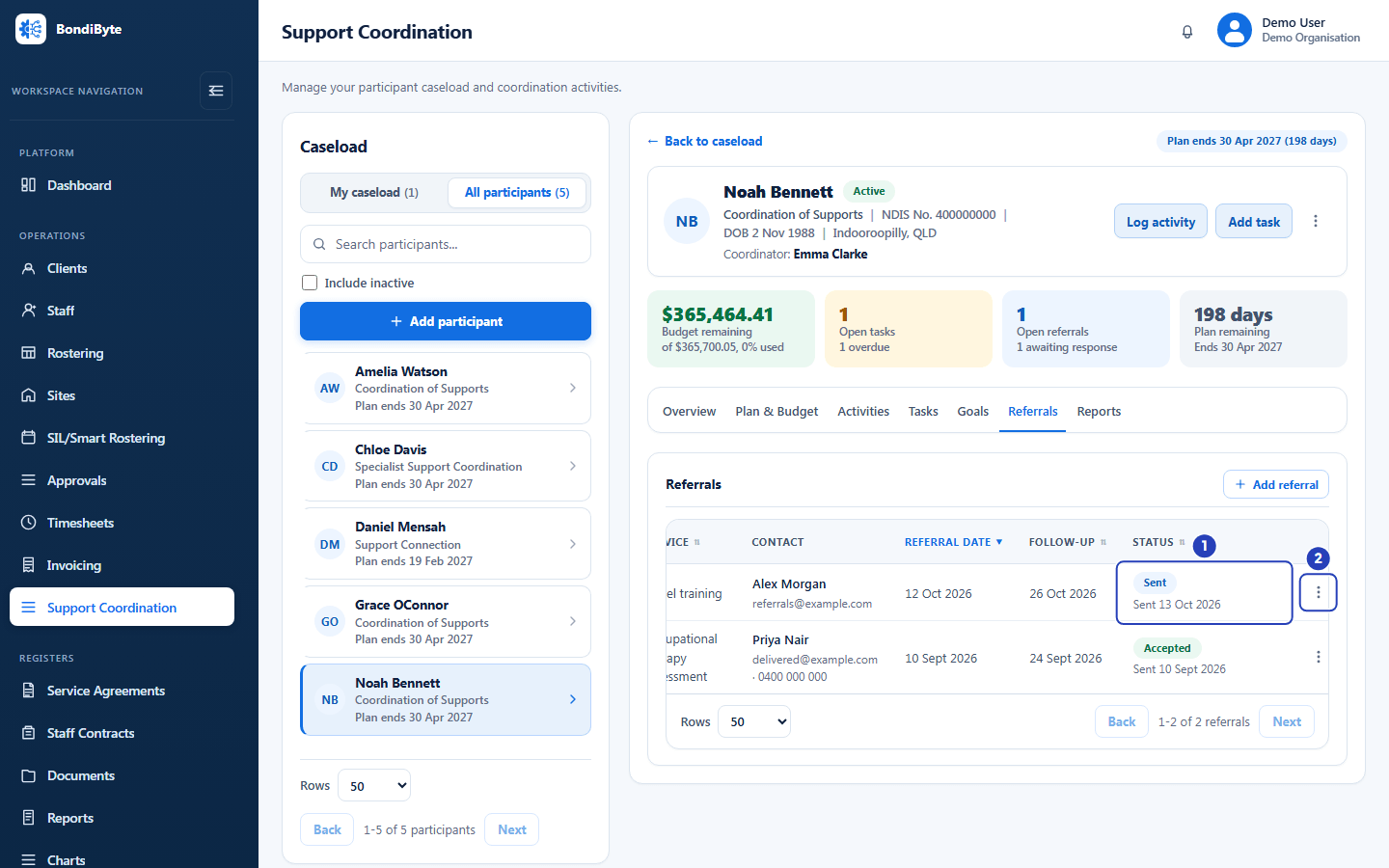
A sent referral shows Sent and the date it was sent (1). Choose the three-dot button (2) to open its menu. -
Know what the provider receives
The provider receives an email with a subject such as Referral - Riverbend Community Services, which is the word Referral and the provider's own name. It says your organisation is referring a participant to them and that the referral letter is attached as a PDF. It shows the provider and the service type, and says it was sent by your organisation using BondiByte.
The PDF letter lists the participant's name, NDIS number, who they are referred to, the service type and the referral date. It includes your Notes, asks the provider to contact you to confirm receipt and next steps, and carries your organisation's name, ABN and support email address.
Important: The referral letter includes the participant's NDIS number. Check the provider's email address before you send.
Note: Sending sets the referral's status to Sent, even when it was Accepted or Declined before. If the email cannot be sent, a message says The email could not be sent. and that the referral has not been marked as sent. You can try again.
-
Open the referral menu
1 Choose the three-dot button at the end of the row.
2 The menu lists the actions in the next step. It shows only what applies to that row. If you can only view support coordination, it lists View, and View email where an email was sent.
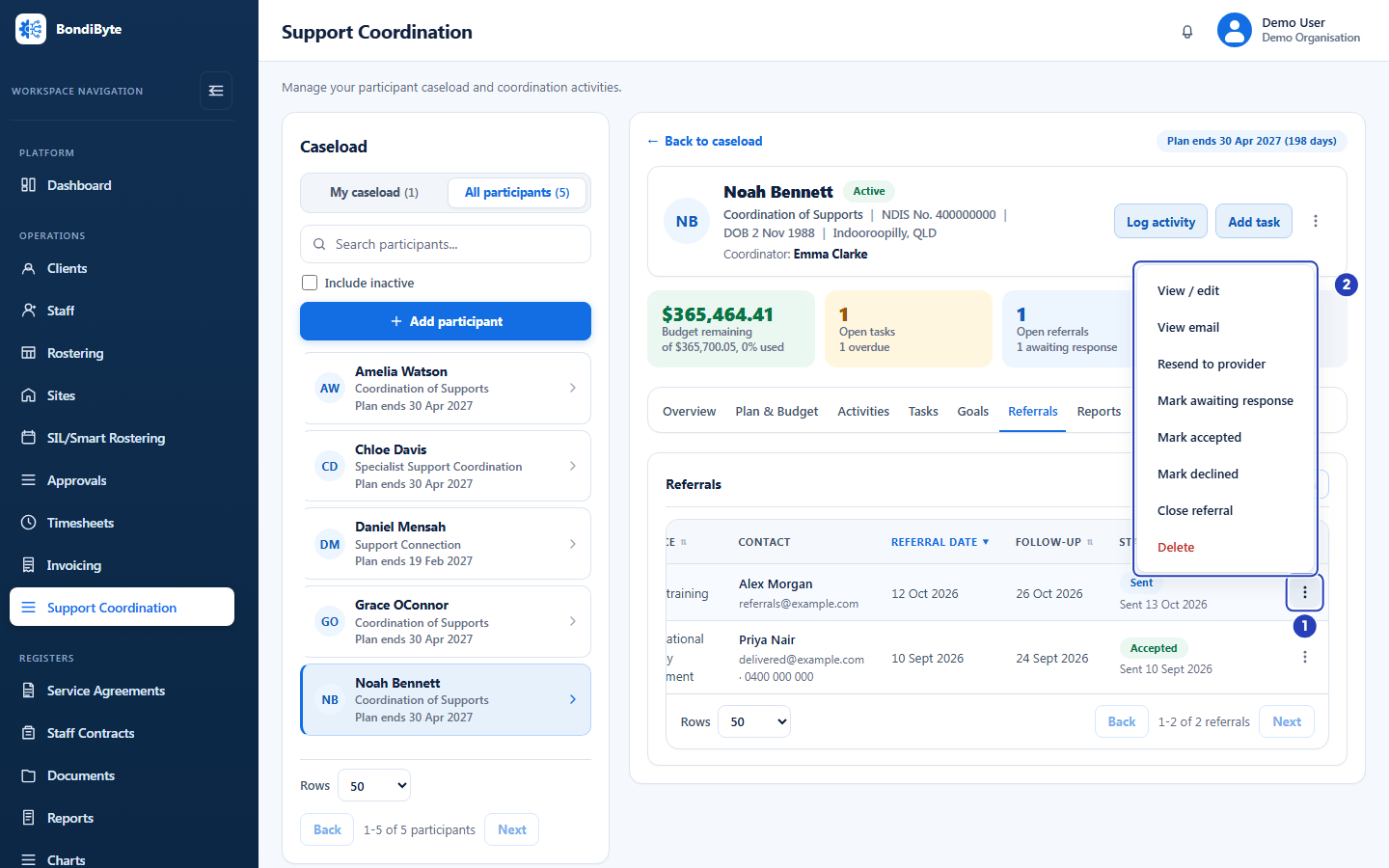
The three-dot button (1) opens the referral menu (2). -
Know what each referral menu item does
View / edit opens the referral in the drawer, titled Edit referral. Change any field and choose Save referral. If you can only view, the item is View and the fields are read only.
View email opens the email that was sent. It shows only once BondiByte has sent an email for the referral. A referral can read Sent without one, for example when someone set the status by hand.
Send to provider or Resend to provider emails the referral, as described above.
Mark awaiting response, Mark accepted and Mark declined set the status. A message confirms each, for example Referral marked as accepted. The menu leaves out the status the referral already has. Changing a status never emails the provider.
Close referral sets the status to Closed when the referral is finished. Closed, accepted and declined referrals no longer count in Open referrals in the header.
Delete removes the referral after you confirm in a window titled Delete referral? It says This cannot be undone.
-
View the email that was sent
Choose View email in a referral's menu. The Email to the provider window opens. BondiByte keeps a copy of each referral email with the participant's record, so you can open it later and see what the provider received.
1 If the referral was sent more than once, Emails lists each email by date and time, with the newest marked (latest).
2 The Email section shows To, Subject, a time and the delivery status.
3 Message shows the email as the provider received it. Scroll down to see all of it. If the message itself was not kept, it says The message text was not stored.
Close at the bottom shuts the window. If the email cannot be loaded, the window shows the problem with a Try again button.
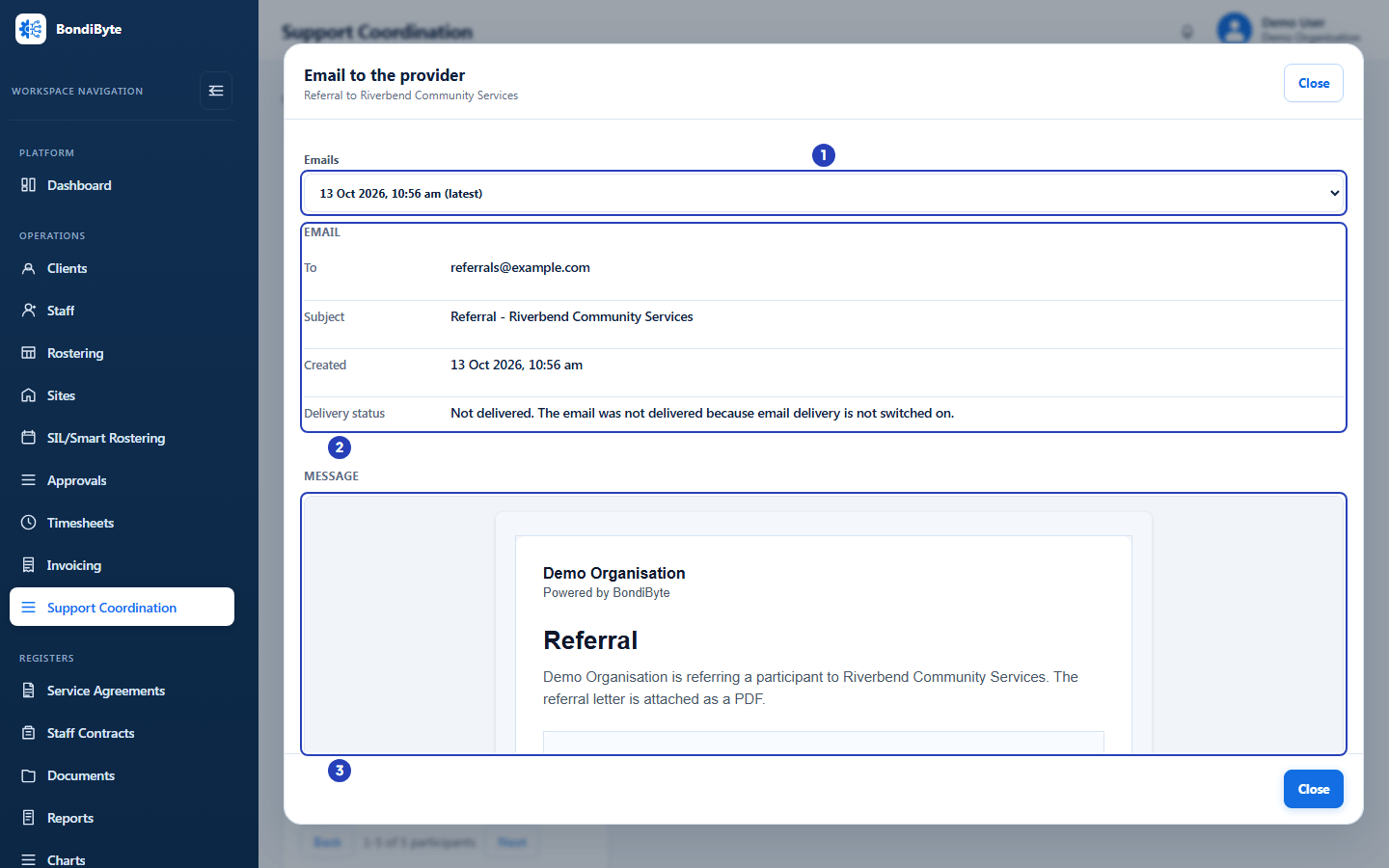
Choose an email (1) if there is more than one. The Email section (2) gives the recipient, subject, time and delivery status. The message (3) is shown as the provider received it. The referral letter is under the message. -
Read the delivery status and the attachment
The time reads Sent when the email was handed to the mail service, and Created when it was not. Under Message, Attachments lists Referral letter (PDF). Download saves it and confirms Referral letter downloaded. A line under it says which letter you are getting. For an email with a kept copy of its letter, when the time reads Sent it says This is the letter as it was sent. When the time reads Created, because the email never went out, it says This is the letter that was attached to this email. Emails from before copies were kept read differently, as described below.
The delivery status is one of these. Waiting to be sent. Being sent. Waiting to try again after a temporary problem. Sent, delivery not yet confirmed. Delivered to the recipient's mailbox. Could not be sent. Bounced, the recipient's address did not accept it. Delivered, then marked as spam by the recipient. Not sent. Sending was blocked for this email. Or, when email delivery is switched off, Not delivered. The email was not delivered because email delivery is not switched on.
After 90 days the delivery record behind the status is cleared, but the copy of the email stays. The label then reads Status when sent, or Recorded status if the email was never sent, with a line saying later delivery updates are not shown.
If the email had no attachment, Attachments says This email had no attachment.
A referral emailed before BondiByte began keeping a copy of each email behaves in one of two ways, depending on how long ago it was sent. If it was sent less than 90 days ago, View email still shows it. Under Attachments, the line reads The letter is produced from the referral as it stands now, so it may differ from the copy that was emailed if the referral has been edited since. and Download gives the letter as the referral reads today, not as it was sent. For an older email that never went out, the line says it may differ from the letter that was attached to this email. If it was sent more than 90 days ago, nothing is left to show, and the window says No stored copy of this email was found. Stored emails are kept for 90 days, then removed.
Important: The screens in this guide come from a demonstration workspace where email delivery is switched off, so no email is really delivered there. The status reads Not delivered, the time reads Created and the line under the attachment reads This is the letter that was attached to this email. In a workspace where delivery is on, the time reads Sent, that line reads This is the letter as it was sent. and the status moves through Sent, delivery not yet confirmed to Delivered to the recipient's mailbox.
-
Create a report
A report draws the participant's plan, budget, goals, referrals, outstanding tasks and activity together into one document, as the record stands today. Choose the Reports tab, then Create report. The Create report window opens.
1 In Report type, choose Initial plan implementation report, Mid-term progress report or End-of-plan reassessment report. This is required.
2 Report date is the date shown on the report. It starts as today.
3 Choose Create report. It stays greyed out until you choose a type. A message confirms Report created. and the report opens for you to read.
Important: A saved report does not change after it is created. It is a snapshot of the record at that moment, with the status Final. To show a later position, create a new report.
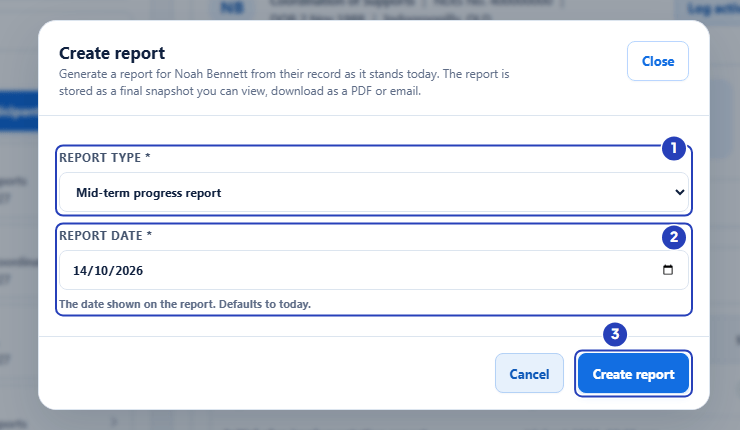
Choose the report type (1) and check the report date (2), then choose Create report (3). -
Open a report's menu
The Reports tab lists each report in three columns. Report gives the report type with its Report date under it. Created gives the date and time, with the person who created it under that. Status reads Final. Choose Created to sort. With no reports the tab says No reports created yet and Create a report to capture the plan, budget, goals, referrals and open tasks as they stand today. If you can manage support coordination, a Create report button sits under it.
1 Choose Create report to make another report.
2 Choose the three-dot button on a report's row. The menu lists View, Download, View email, Email copy and Delete. View email shows only once the report has been emailed. If you can only view support coordination, Email copy and Delete are left out.
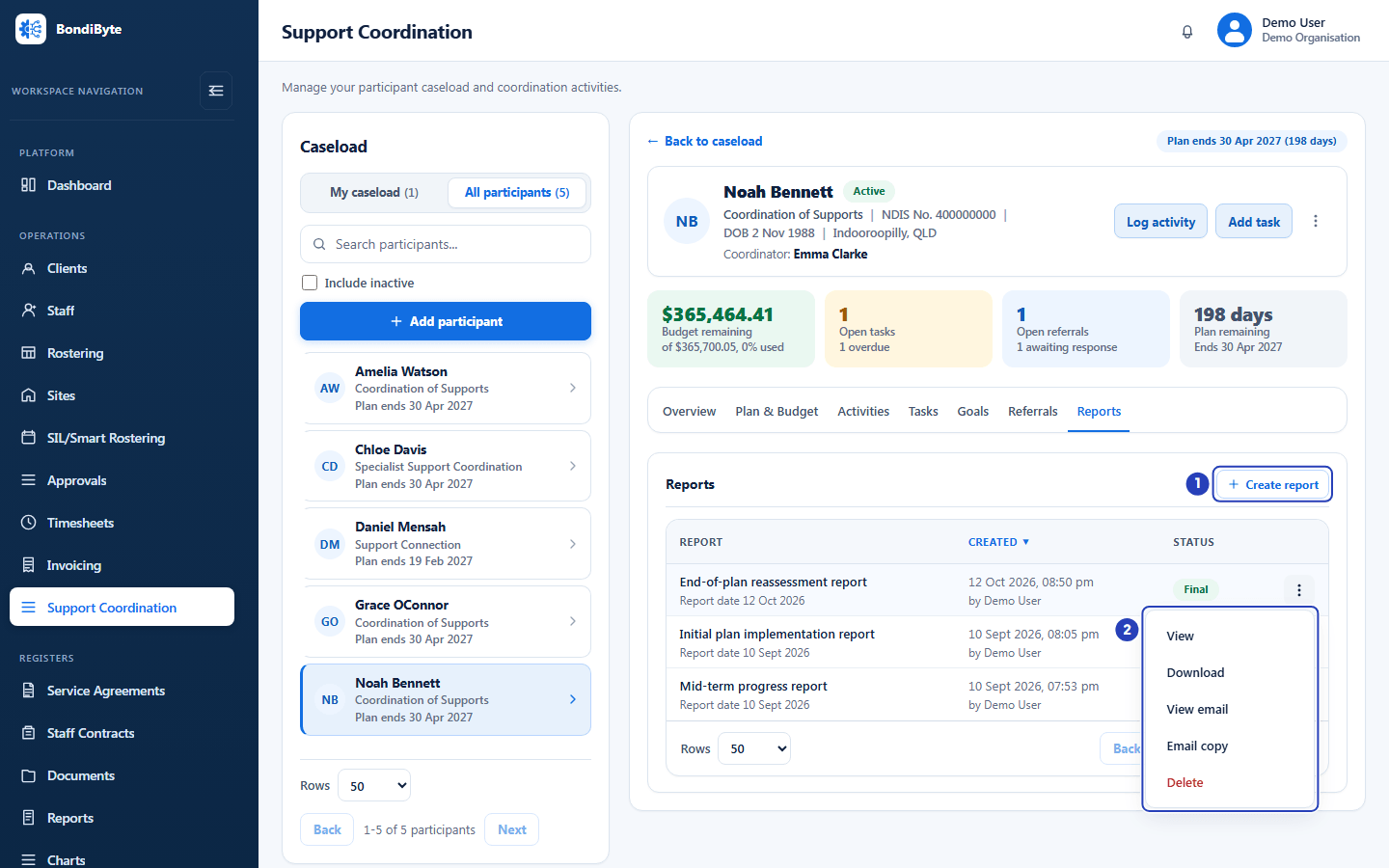
Choose Create report (1) to make a report. A report's three-dot menu (2) has View, Download, View email, Email copy and Delete. -
Know what each report action does
View opens the report as a document. The window's title is the report type, with the participant, the Report date and when and by whom it was created under it. The sections are described in the next step. Three buttons sit at the bottom. Download and Email copy do the same as the menu items below, and Email copy shows only when you can manage support coordination. Close shuts the window. If the report cannot be loaded, the window shows the problem with a Try again button.
Download saves the report as a PDF and confirms Report PDF downloaded. Delete removes it after you confirm in a window titled Delete report?
Email copy opens the Email a copy of the report window. To is required. Recipient name is optional. Subject starts as the report type and the participant's name. Message is optional and goes above the standard note that the report is attached as a PDF. Choose Email copy to send it. A message confirms the copy was emailed, and the email is logged as an Email activity on the participant's record. That needs the participant to have a coordinator.
View email opens the Email about this report window. It works like the referral email window. Attachments lists Report (PDF), with the line This is the saved report, which does not change after it is created.
-
Read a saved report
The report window shows the record as it stood on the day the report was created. Scroll down to see all seven sections. A value that is not recorded reads Not recorded.
Fields in step 18 Field What it means Participant and coordinator Participant, Report date, Coordinator (Not assigned if there is none), Coordination level (Not set if there is none) and Generated, the date and time the report was created. Plan Plan end date, Days until review and Review due soon, which reads Yes or No. Budget A line saying how much of the budget was used and how much remains, then a table with Support item (the name and code), Budget, Used, Remaining, Used % and Status, which reads On track, Nearly used or Over budget. With no funded supports it says No funded supports on the participant's plan. Goals Goal, Status, Target date and Progress note, plus Progress when a goal carries a percentage. With none it says No goals recorded. Referrals Provider, Service type, Status, Referral date and Follow-up date. With none it says No referrals recorded. Outstanding tasks Task, Status, Due date, Priority and Assigned to (Not assigned if there is none). With none it says No outstanding tasks. Activity Activities logged, Billable and Claimed, each a count of activities.
What happens next
A billable activity is now part of the participant's budget. Check Used and Remaining on the Plan & Budget tab. Create claim there gathers the unclaimed billable activities into one claim. See Support Coordination caseload and record.
A sent referral stays on the Referrals tab until you mark it Accepted, Declined or Closed. Referrals still open count in Open referrals in the header.
Open View email at any time to see what was sent for a referral or a report.
Important notes
Note: The screens in this guide show a demonstration organisation with made-up participants and providers, with email delivery switched off. Your own screens will show your participants, and your emails will show the real delivery status.
Important: The budget figures are based on the work you record in BondiByte against the participant's Service Agreement. They are not the participant's official NDIS balance.
Good practice
- Log an activity soon after the work, and write the case note so a colleague could pick up the participant without asking you.
- Tick Billable only for time that really is charged to the participant's funding, and choose the funded support that matches the work.
- Set a Follow-up date on every referral so the Referrals tab shows when to chase a reply.
- Check the provider's email address before you choose Save and send. The referral letter includes the participant's NDIS number.
- Create a report at the start, middle and end of a plan. Create a new one rather than expecting an old one to update.
Troubleshooting
Bill against shows No funded supports on this plan, or I cannot save a billable activity.
Why it happens: The participant has no active Service Agreement with line items, so there is nothing to bill against.
What to do: Untick Billable if the time is not charged. Otherwise add line items to the agreement first. See Add line items.
A message asks me to assign a support coordinator first.
Why it happens: An activity or an email is recorded under the participant's coordinator, and the participant has none.
What to do: Open the header menu, choose Change coordinator, and choose one. See Support Coordination caseload and record.
I cannot delete an activity, or Edit shows as View.
Why it happens: The activity has been claimed and is locked, so Delete is greyed out and Edit reads View. Or your role can only view support coordination, so the menu has View alone.
What to do: A claimed activity cannot be changed or deleted, so log a new activity if you need to correct the position. If the menu has no Delete at all, ask an Owner or Admin to check your role.
Save and send is not there.
Why it happens: The Provider email is empty or is not a valid address.
What to do: Type a valid address. Save and send appears as soon as it is valid.
A referral shows Sent, but View email is not in its menu.
Why it happens: The status was set by hand, so no email was sent through BondiByte for it.
What to do: Choose Send to provider if the provider still needs the referral.
View email says Not delivered and the time reads Created.
Why it happens: Email delivery is switched off for the workspace, as it is in a demonstration workspace.
What to do: In a workspace with delivery on, the status reads Sent, delivery not yet confirmed and then Delivered to the recipient's mailbox. If it reads Could not be sent or Bounced, check the address and send again.
View email says No stored copy of this email was found.
Why it happens: The referral was emailed before BondiByte began keeping a copy of each email, and that was more than 90 days ago. Emails from before the lasting copies are held for 90 days and then removed.
What to do: The email was sent but cannot be shown. Resend the referral to create a stored copy.
View email shows a line saying the letter is produced from the referral as it stands now.
Why it happens: The referral was emailed before BondiByte began keeping a copy of each email, less than 90 days ago. There is no copy of the letter, so it is rebuilt from the referral as it reads today.
What to do: Read the letter as the current referral. If the provider needs exactly what was sent, check the referral for later edits, or resend it to create a stored copy.
The report does not show the changes I made today.
Why it happens: A saved report is a snapshot of the record at the moment it was created.
What to do: Create a new report. The old one stays as a record of that day.
Questions and answers
Does changing a referral's status email the provider?
No. Mark awaiting response, Mark accepted, Mark declined and Close referral only change the status. Only Save and send, Send to provider and Resend to provider email the provider.
Does BondiByte keep the emails it sends for a referral or a report?
Yes, for every email sent since BondiByte began keeping copies. A copy is kept with the participant's record. View email shows it with the delivery status, the email as the recipient received it and a download for the attachment. A referral emailed before that can be shown for 90 days after it was sent, with a note that its letter is rebuilt from the referral as it stands now, and after that no copy remains.